Invoices and receipts are the best way of ensuring your finances are clear and the clients know exactly what they paid for, minimizing complaints and increasing customer satisfaction. When doing a Sale from your POS you have a few ways to use those tools to your advantage, so let's give them a look.
Click the Invoice option within the hamburger menu to begin.

The Invoice Section
Overview
In the Invoice section of your app, you'll find a condensed view of your paid invoices (Total earnings received) and due & overdue invoices (Earnings to be received) as well as three categories to filter your invoice by type Invoices, Templates, and Recurring.

Search & Filter
You can use the search bar to look for a specific invoice or the filters to limit the results to a specific status, type, or date for the invoice.

Create new Invoices by clicking the Plus sign button.

Converting to Invoice
When initiating a sale from the POS, you can easily convert it to an Invoice by selecting it as the Payment Instrument.

After selecting Convert to Invoice add the customer information by clicking the Trash can Icon to remove the automated contact.

Then, click the Plus sign button and select the customer from your contact list.

Add an Issue Date and Due Date for your invoice and click Next.

Add your Terms and Notes and click Next.

Review the invoice and click Send, at this step, you can add discounts if needed by clicking the option before sending.

Viewing Paid Invoices and Receipts
When doing transactions on your POS make sure to link a contact to them, that way once the transaction is successfully completed you can access the Invoice and Receipt attached to it. To view it access the Transactions view inside the POS.

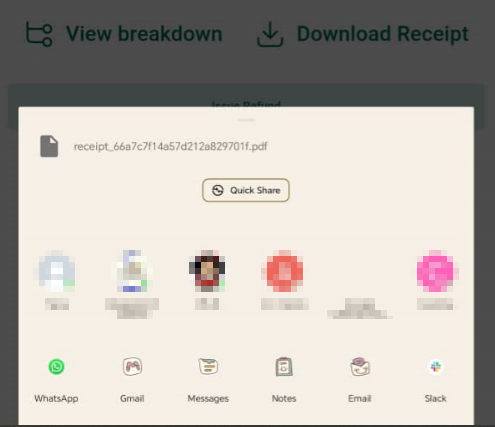
Click on the performed transaction for more details. At the bottom, you'll find two options View Breakdown and Download Receipt.

View Breakdown
This will be the itemized Invoice for the transaction which you can download as a PDF to send to your customers.

Download Receipt
This will download a PDF version of the Receipt, generated according to your system settings, to your device and give you quick share options.
And there you go! Now you can view and manage your Invoices and Receipts on the go.
Was this article helpful?
That’s Great!
Thank you for your feedback
Sorry! We couldn't be helpful
Thank you for your feedback
Feedback sent
We appreciate your effort and will try to fix the article