If you need to transfer specific contacts from your system or marketing campaign, there’s an easy and efficient solution. Simply select the contacts you wish to download within the Contacts tab, and click the "export" button.
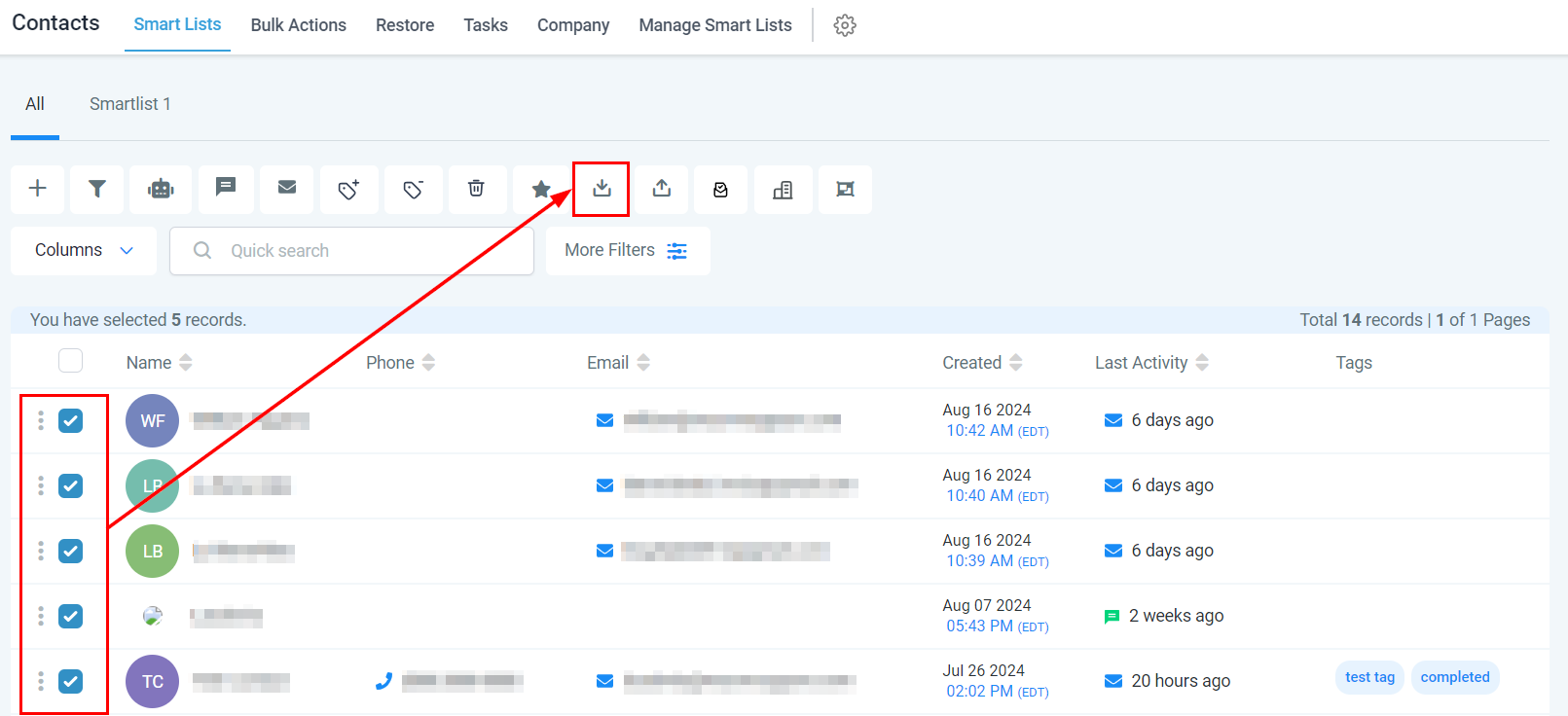
Confirm the action to initiate the download.
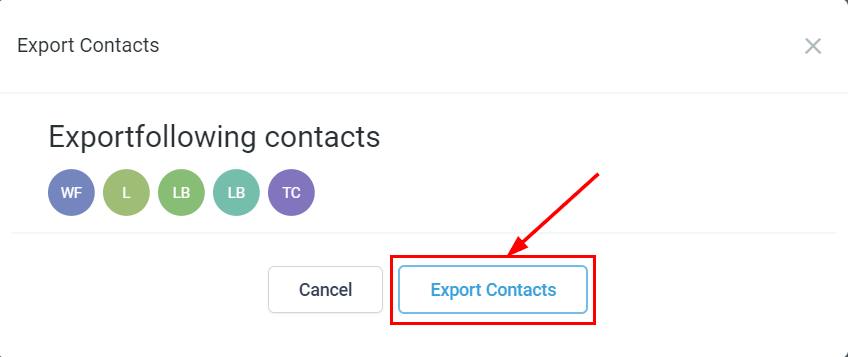
The contacts will be promptly downloaded as a CSV spreadsheet to your device. While it may take a few moments to generate, the export feature eliminates the need for manual data entry, allowing you to focus on more important tasks.
Exported Contacts
The downloaded spreadsheet includes column headers containing the contact's details such as Contact ID, first name, last name, business name, phone number, email address, date created, last activity date, and tags.
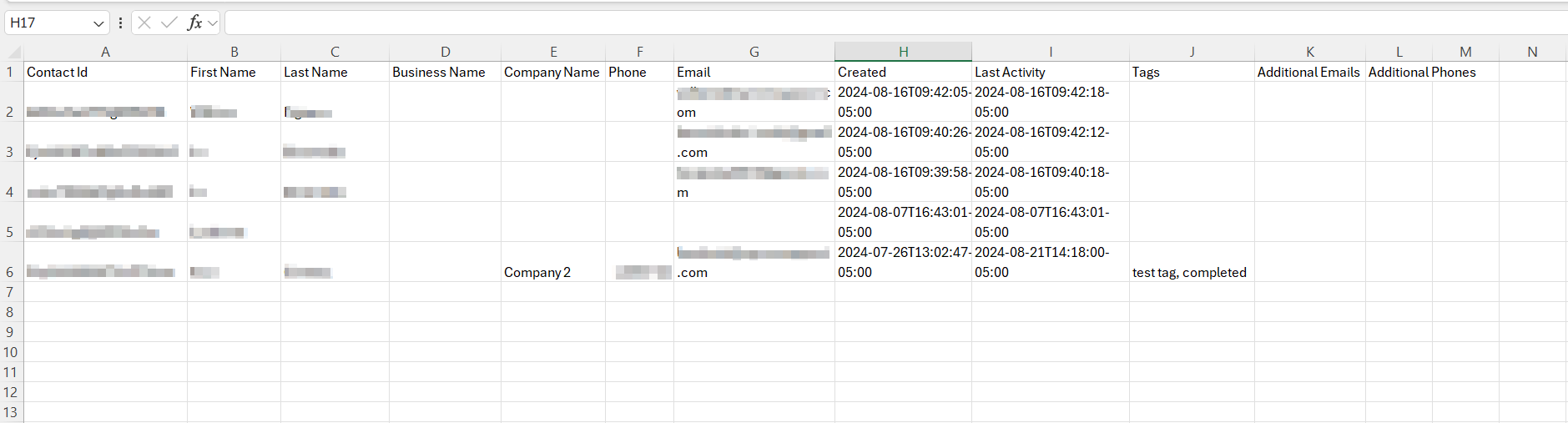
Contact ID
Each contact in your system is assigned a unique Contact ID, which serves as a tracking identifier for easy reference and management.

First and Last Name
The first and last name fields allow you to easily identify the contact by name.

Business Name
The business name column displays the business associated with the contact, aiding in identifying contacts linked to specific businesses.

Company Name
The company name column helps identify contacts linked to a company created in the platform.

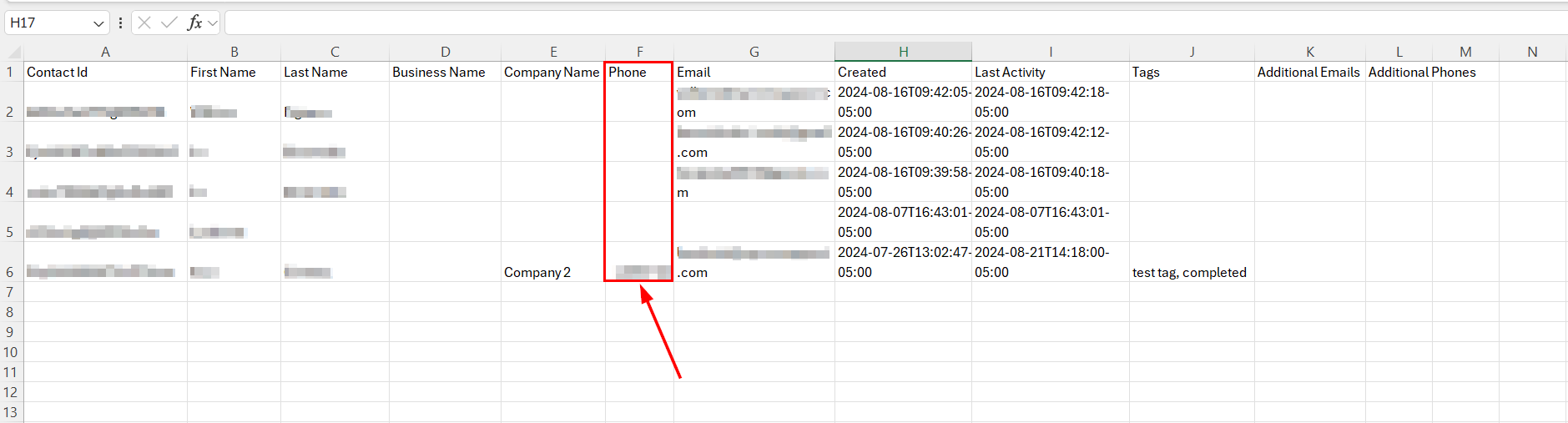
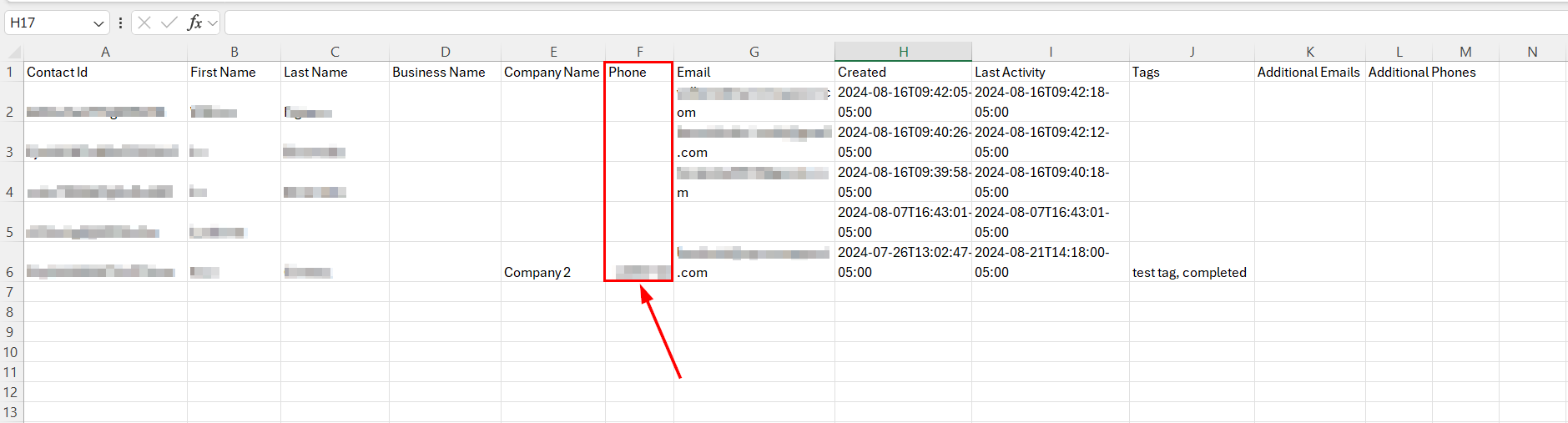
Phone Number
This column lists the contact's primary phone number.
Email Address
This column lists the contact's primary email address.
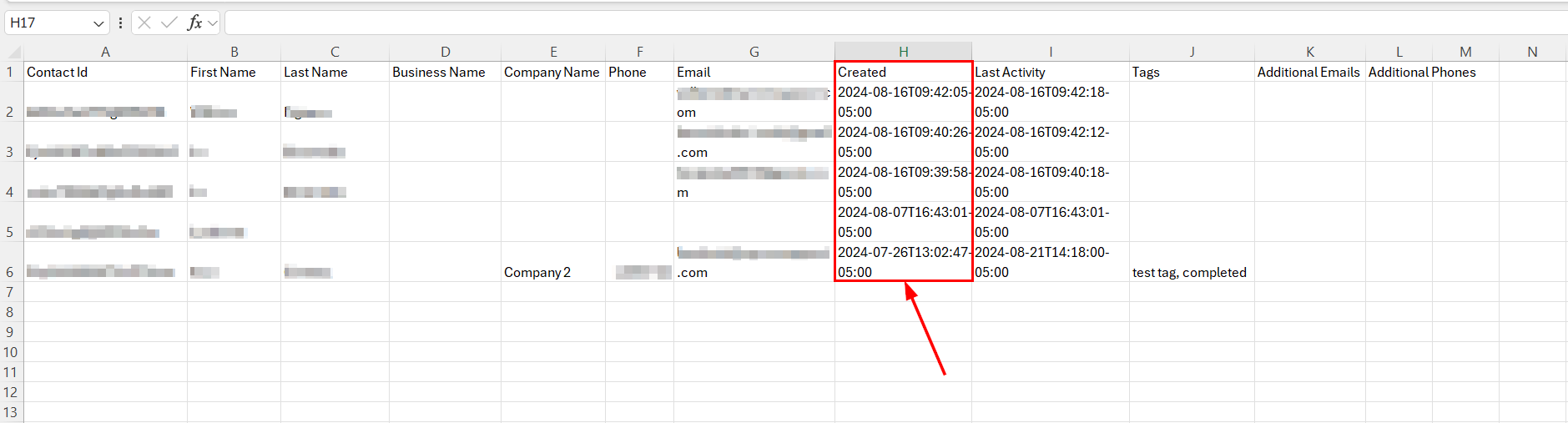
Created
This column records when the contact was added to your system by YYYY-MM-DD THH:MM:SS.
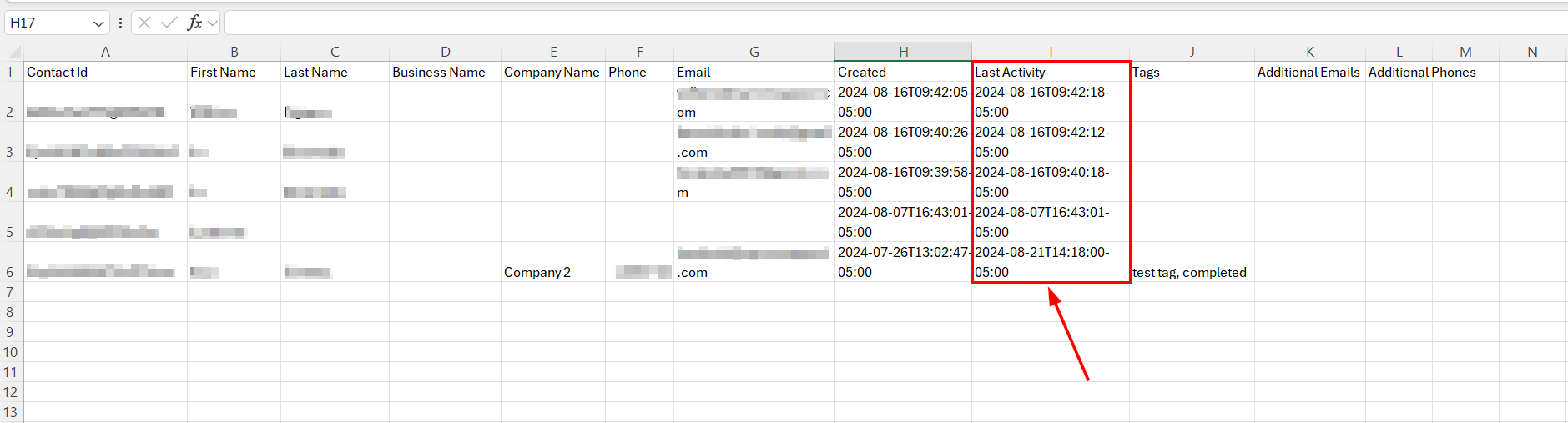
Activity Log
The Last Activity column provides information on the most recent updates to a contact's record, including the exact date and time of the changes.
Tag
This column shows any tags associated with the contact.

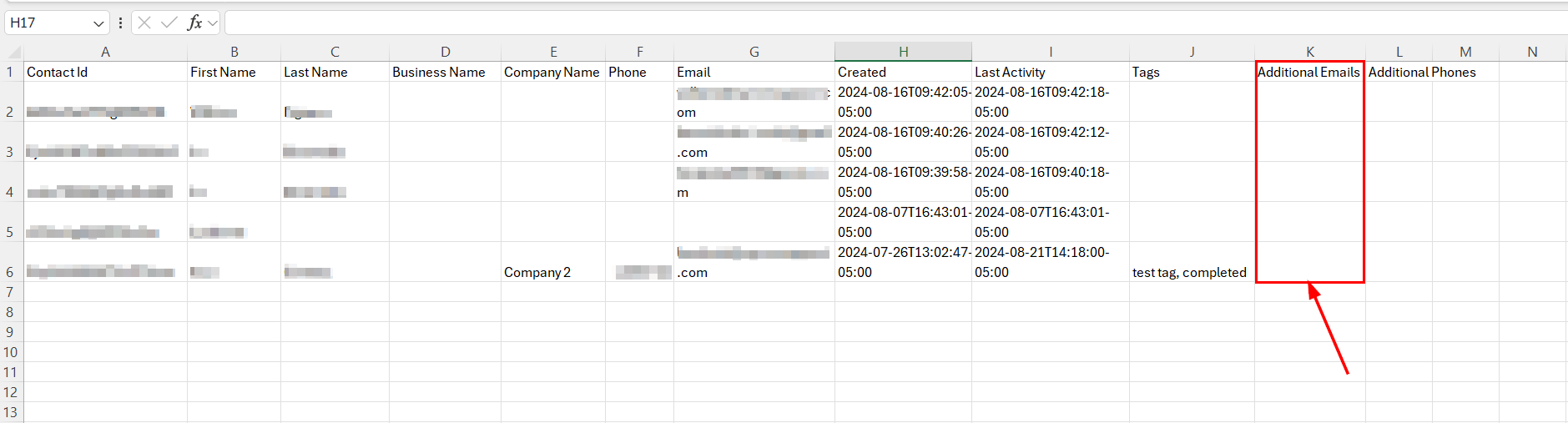
Additional Emails
For contacts with multiple email addresses, any additional emails will be listed in this column.
Additional Phones
For contacts with multiple phone numbers, any additional numbers will be listed in this column.
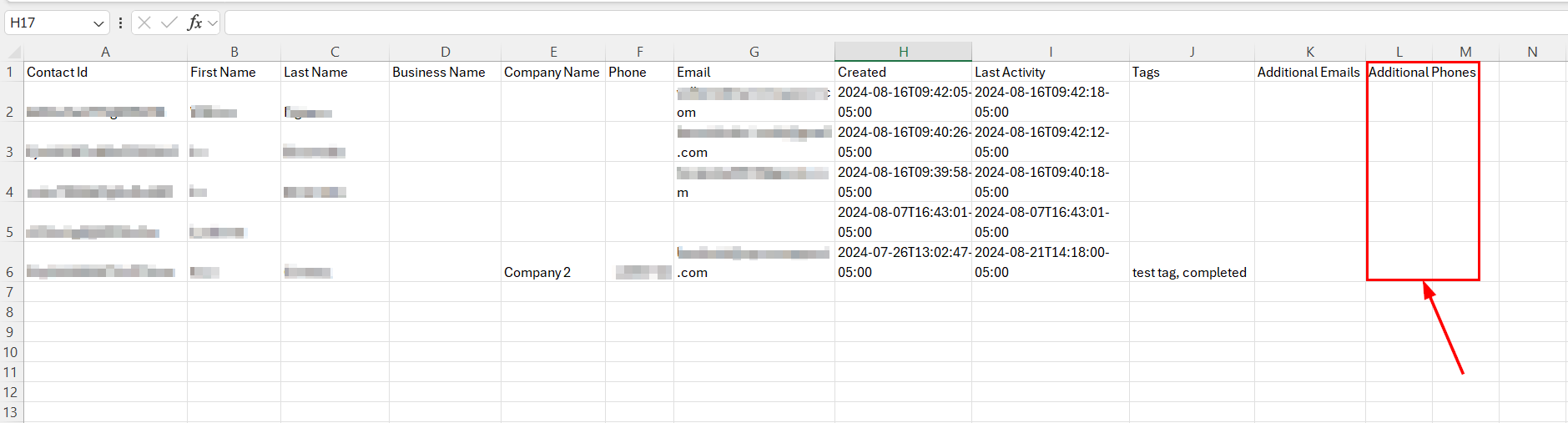
You now have all the necessary information to seamlessly export your contacts.
Was this article helpful?
That’s Great!
Thank you for your feedback
Sorry! We couldn't be helpful
Thank you for your feedback
Feedback sent
We appreciate your effort and will try to fix the article