Step 1: Create and Access your Paypal Account
- Visit developer.paypal.com to create or log in to your Paypal account. Once logged in, navigate to your Paypal Dashboard.
- Click My Apps & Credentials.
- Choose the Live app option.
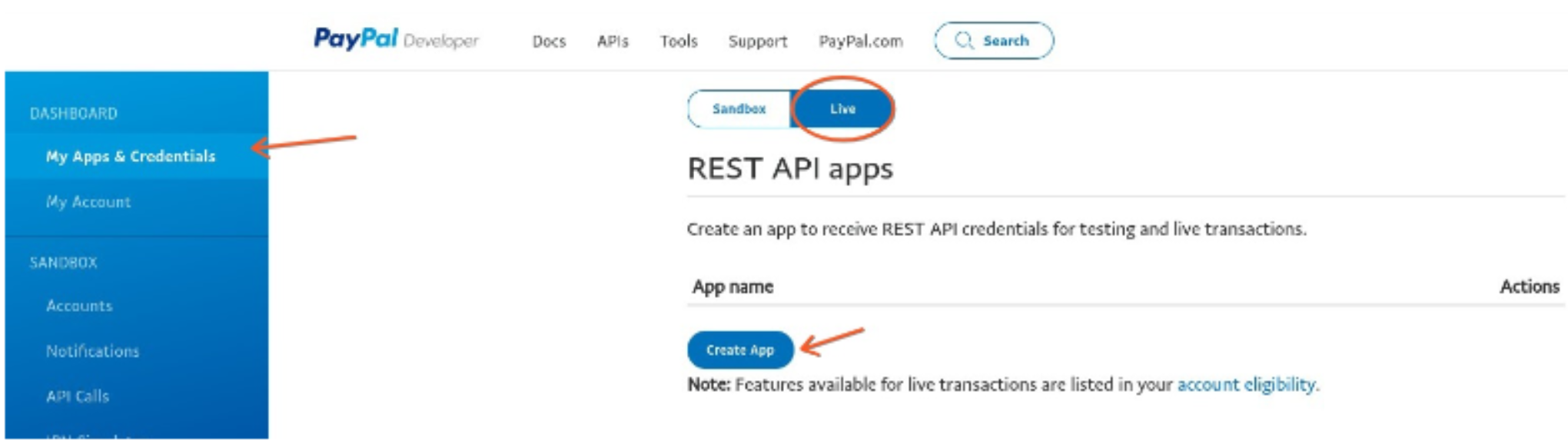
NOTE: Be sure you have selected the Live app option, vs. Sandbox. The Sandbox option and credentials are used to test Paypal. You will need to create a Live app and use Live credentials in order to actually process payments.
- Click the Create App button.
- Choose an app name.
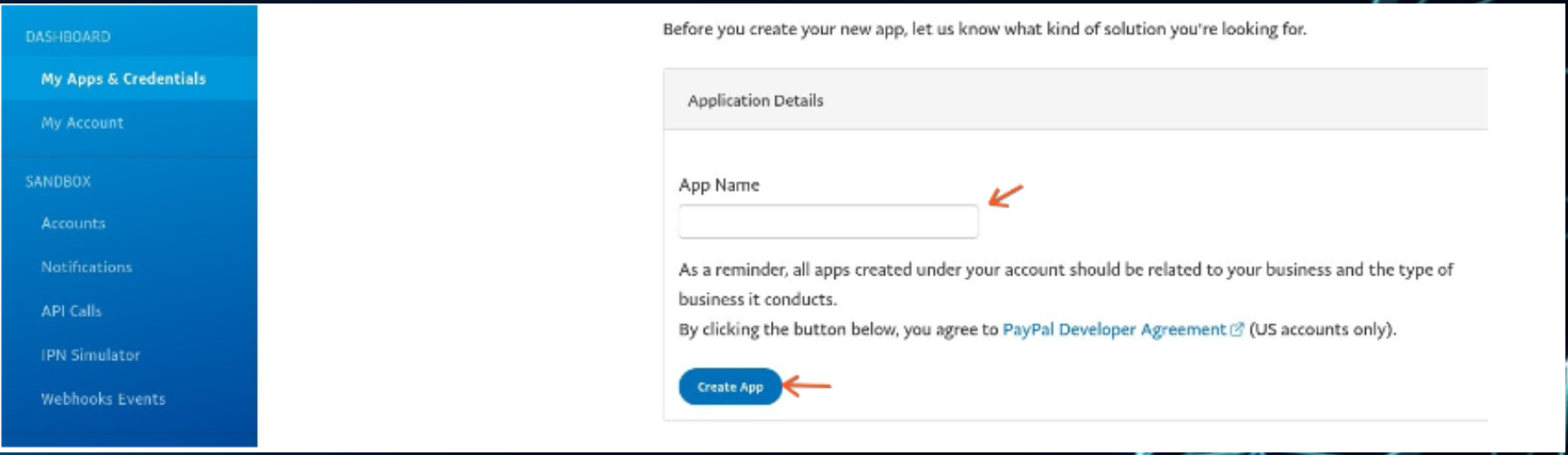
- Click Create App and you’ll now be able to view your Client ID and Secret ID. (The Secret ID may be hidden - you may need to click “Show” in order for it to display on the page.) Copy both the Client ID and Secret ID as you’ll need to paste them into Clixlo momentarily to complete the integration.
Step 2: Integrate Paypal to LaunchPro
- Navigate to Payments > Integrations
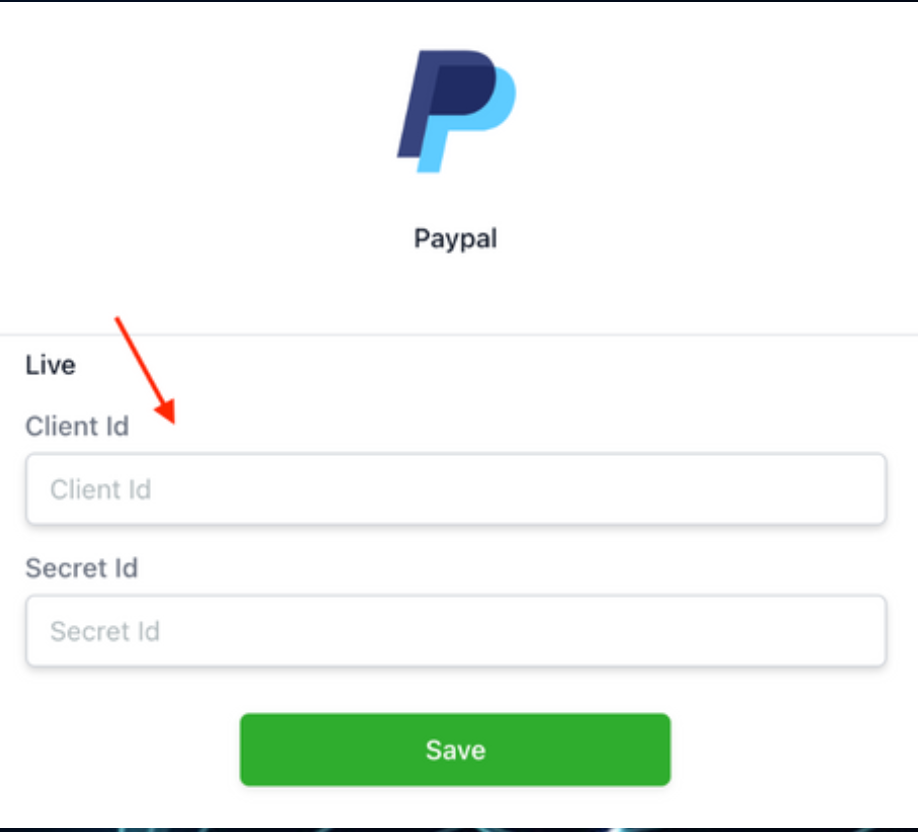
- Add your Client ID and Secret ID from your Paypal account that you copied in Step 1.
- Click Save to confirm the integration.
Was this article helpful?
That’s Great!
Thank you for your feedback
Sorry! We couldn't be helpful
Thank you for your feedback
Feedback sent
We appreciate your effort and will try to fix the article