Step 1: Create a Stripe Account
You will need to have a Stripe account in order for this to work, so either create a new account, or log in to your existing account if you already have one.
Step 2: Connecting your Stripe Account
- Navigate to Payments > Integrations
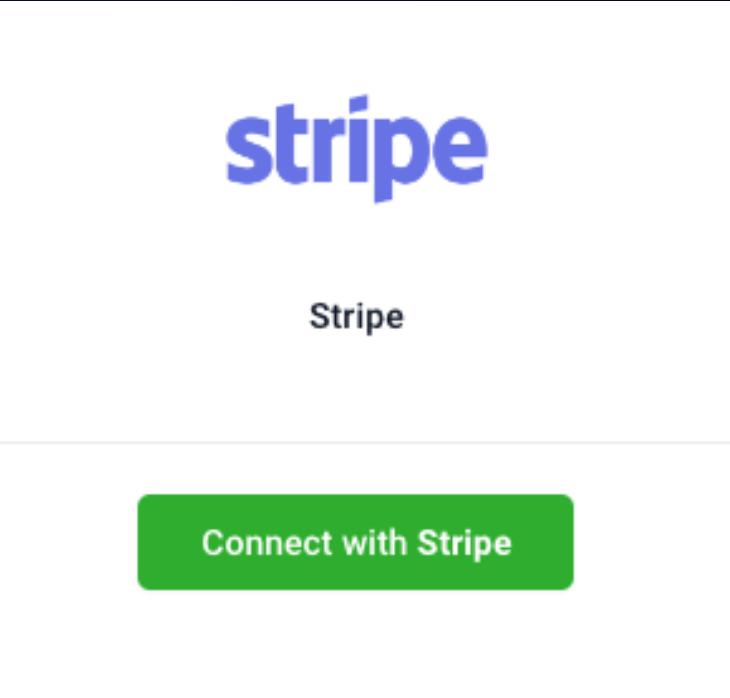
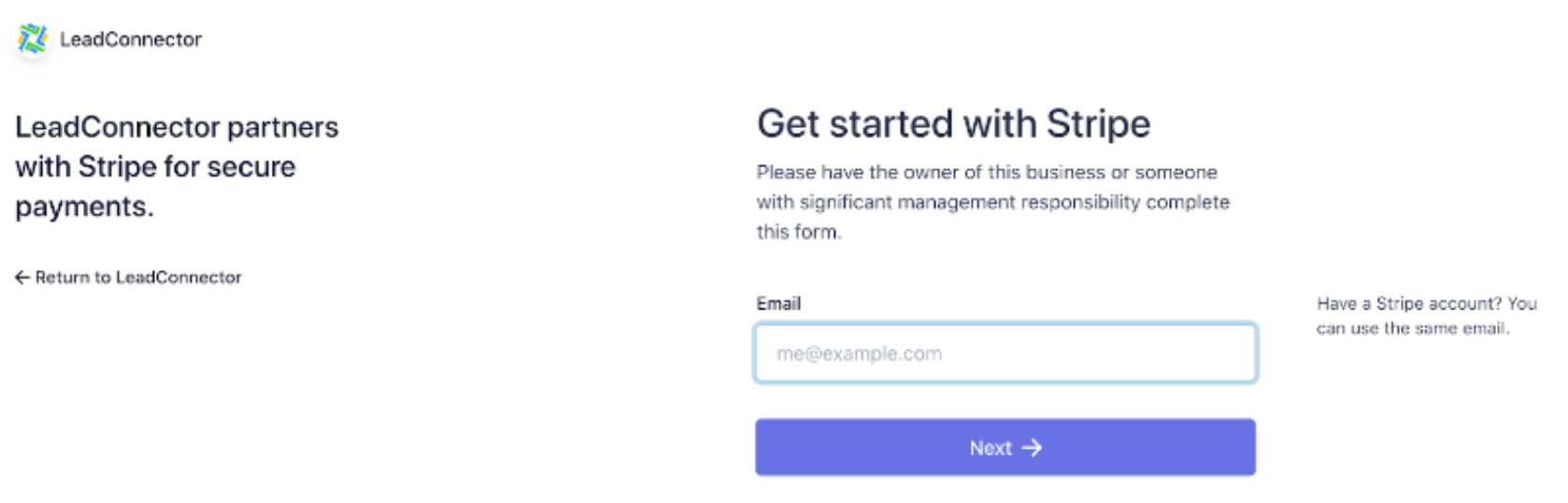
- Click “Connect with Stripe” and you’ll be redirected to the “get started” page.
- Follow the steps to sign in to your Stripe account and complete the integration with LeadConnector.
- Once your Stripe account is connected, you can click “Disconnect” if you wish to remove or change it.
Step 3: Creating Products in your Stripe Account
To ensure you can charge for products in your funnels (check out or other tutorials on that topic), make sure you have the products created in your Stripe account. It is only necessary to create Subscription and Payment Plan type products first in Stripe before using them in your funnel.
- In your Stripe account, under the “Billing” menu, select “Products”.
- Click + New to add a new product. Here you will need to name the product, and click "Create Product" to set up the product.
- Then, you can edit the pricing, billing interval (one time, monthly, etc.), and more, to completely customize this product.
- Click "Add Pricing Plan" to save the product, and now you can connect it to a funnel if you wish!
Step 4: Importing Products from Stripe
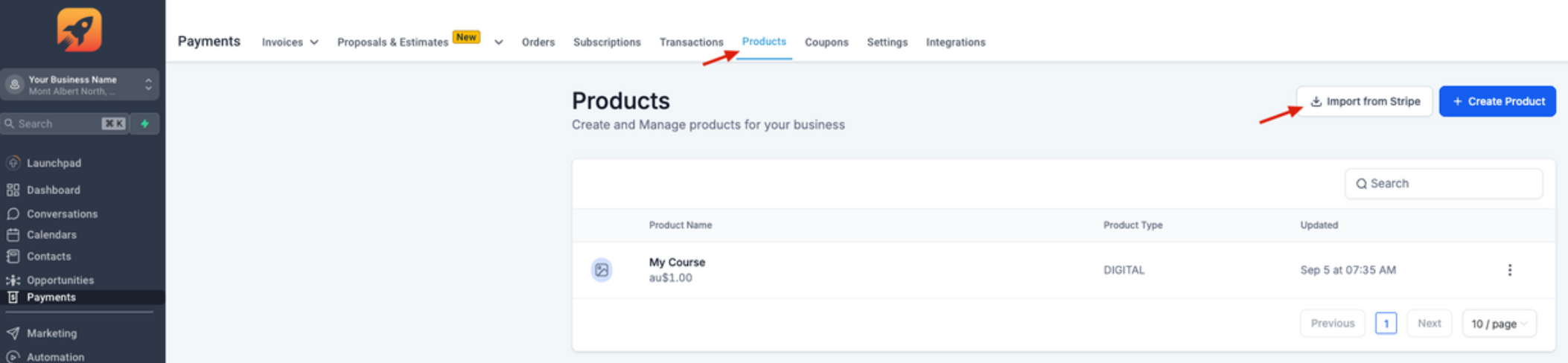
- Navigate to Payments > Products
- Click Import from Stripe
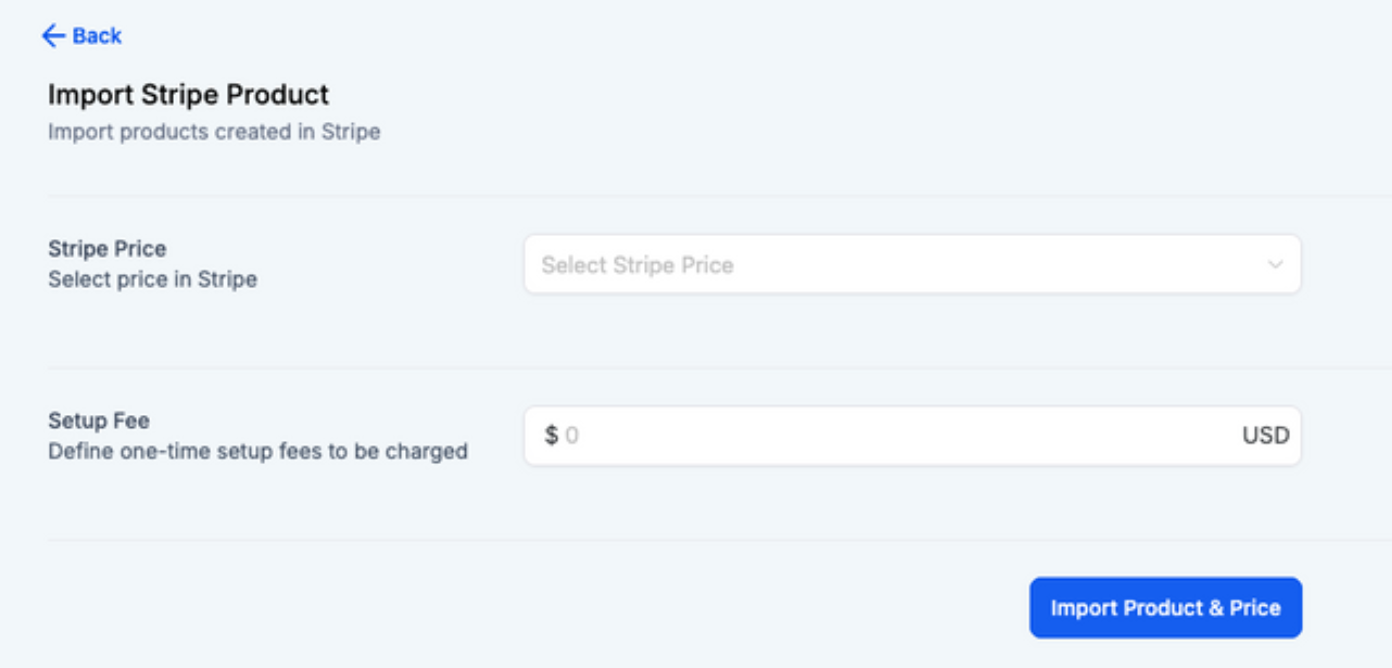
- Select the Stripe Product and put a Setup fee (if needed)
- Click Import Product & Price
Was this article helpful?
That’s Great!
Thank you for your feedback
Sorry! We couldn't be helpful
Thank you for your feedback
Feedback sent
We appreciate your effort and will try to fix the article