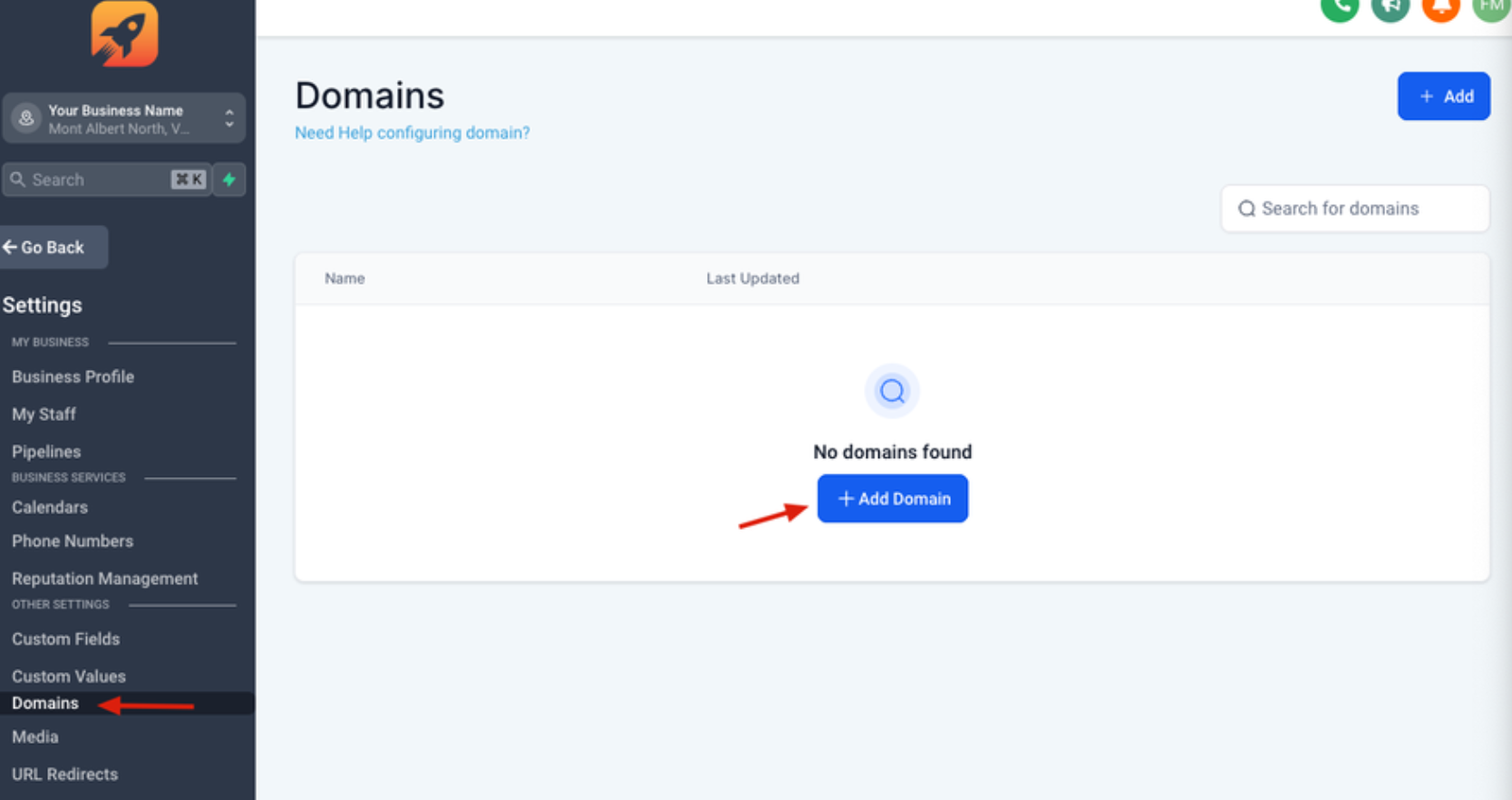
Step 1: Go to Settings > Domains > Add Domains
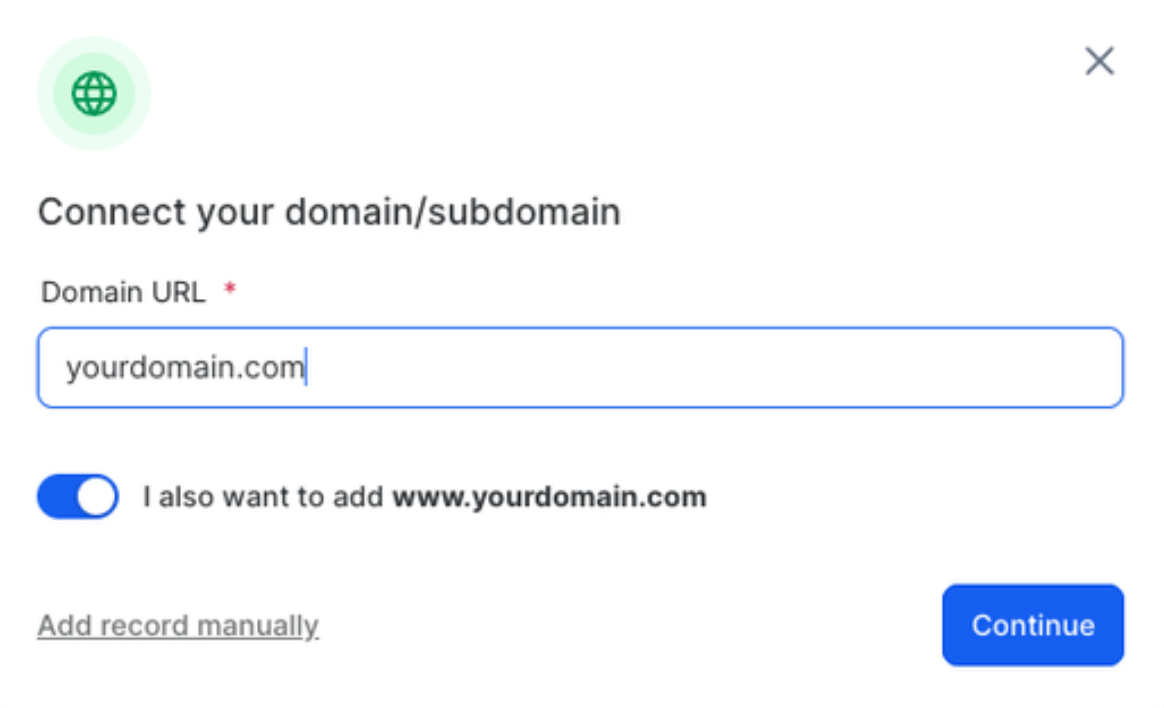
Step 2: Enter your domain/subdomain > Click Continue
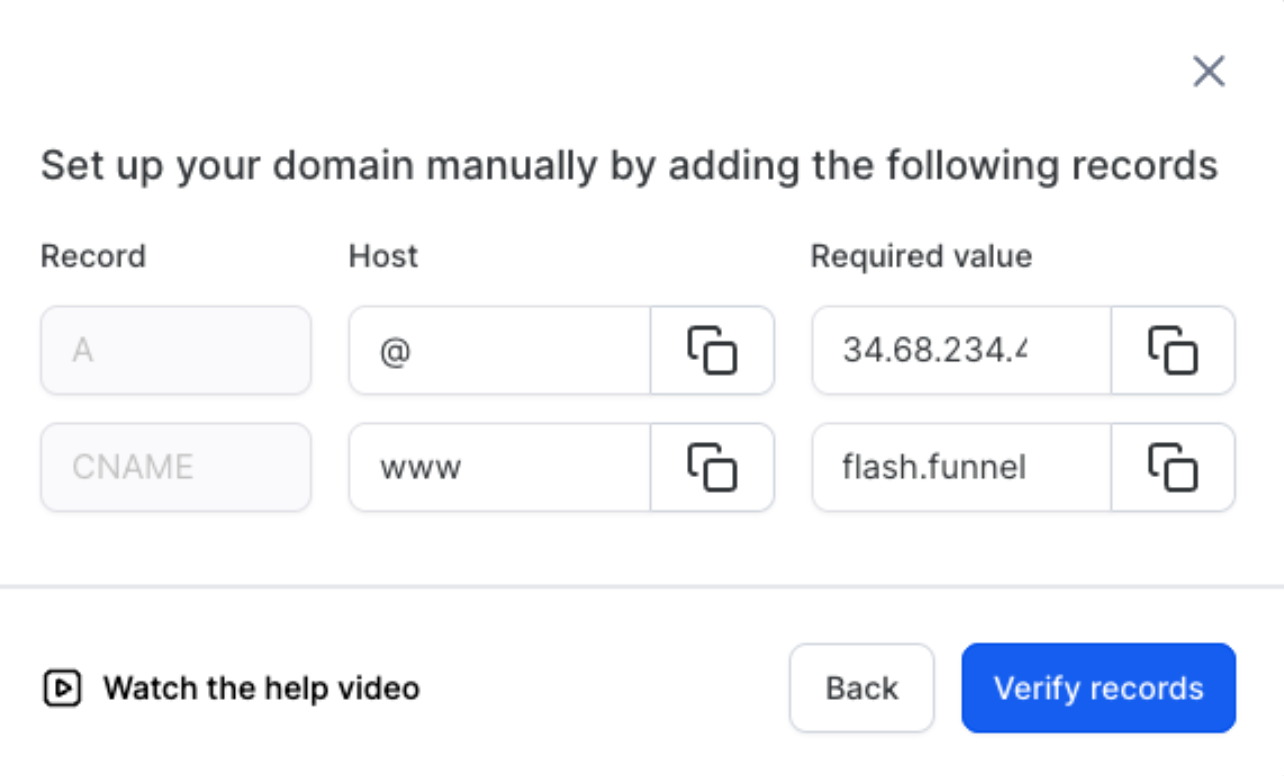
If you've added a root domain, copy the A record with required value - 34.68.234.4
If it's a subdomain, copy the CNAME record with required value - flash.funnels.msgsndr.com
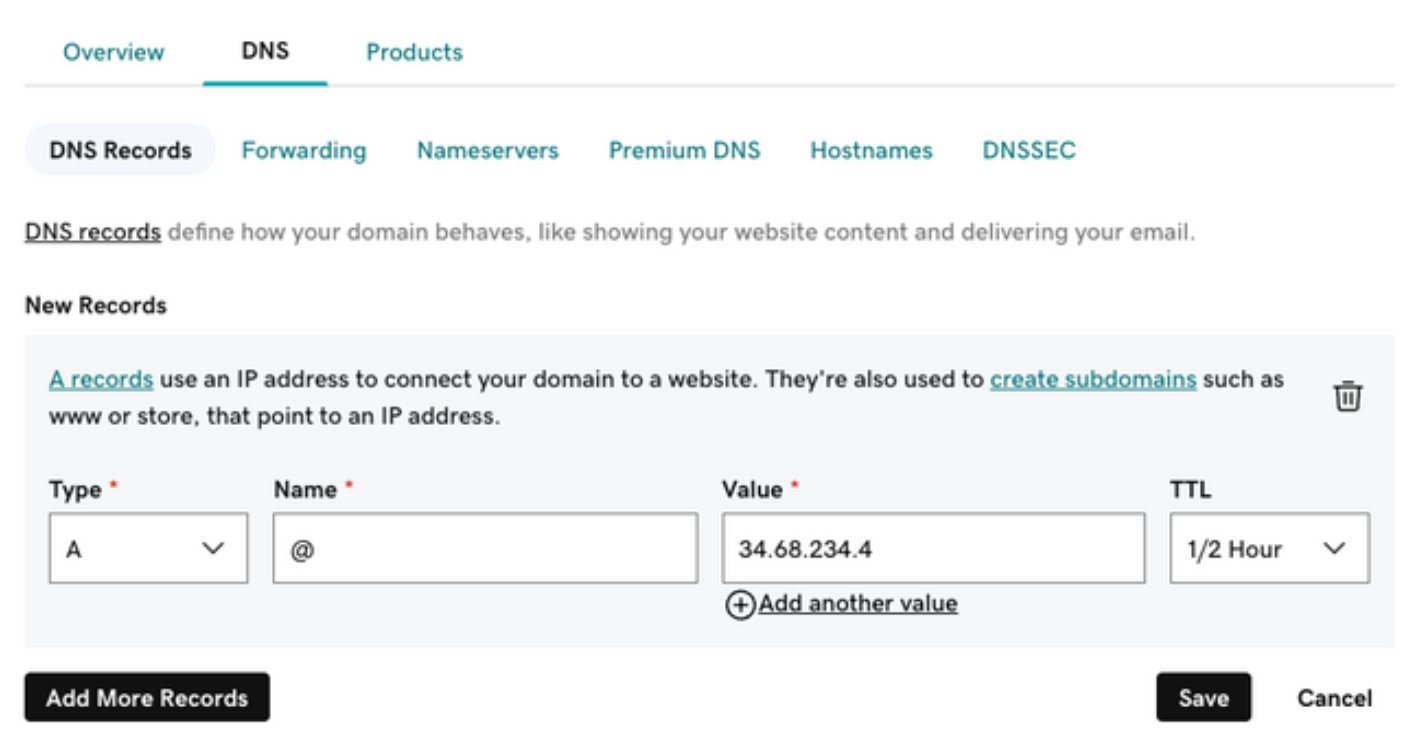
Step 3: Login to your Domain Registrar (ex. GoDaddy)
Look for your domain’s DNS then click on Manage.
Paste the DNS record. In this example let’s add a root domain. put the @ symbol to signify the root on the “Name” field, paste the Required value on the “Value” field, and choose 1⁄2 hour on the “TTL” field. Click “Save”.
Step 4: Go back to LaunchPro and click Verify Records
Note: This might take 5 seconds to 48 hours to propagate, just click Verify records until it’s successful.
Step 5: Once it's updated, you may now link it to your funnel
Go to Sites > Funnels > Select your funnel > Click Settings > Select the domain you’ve added > Click Save
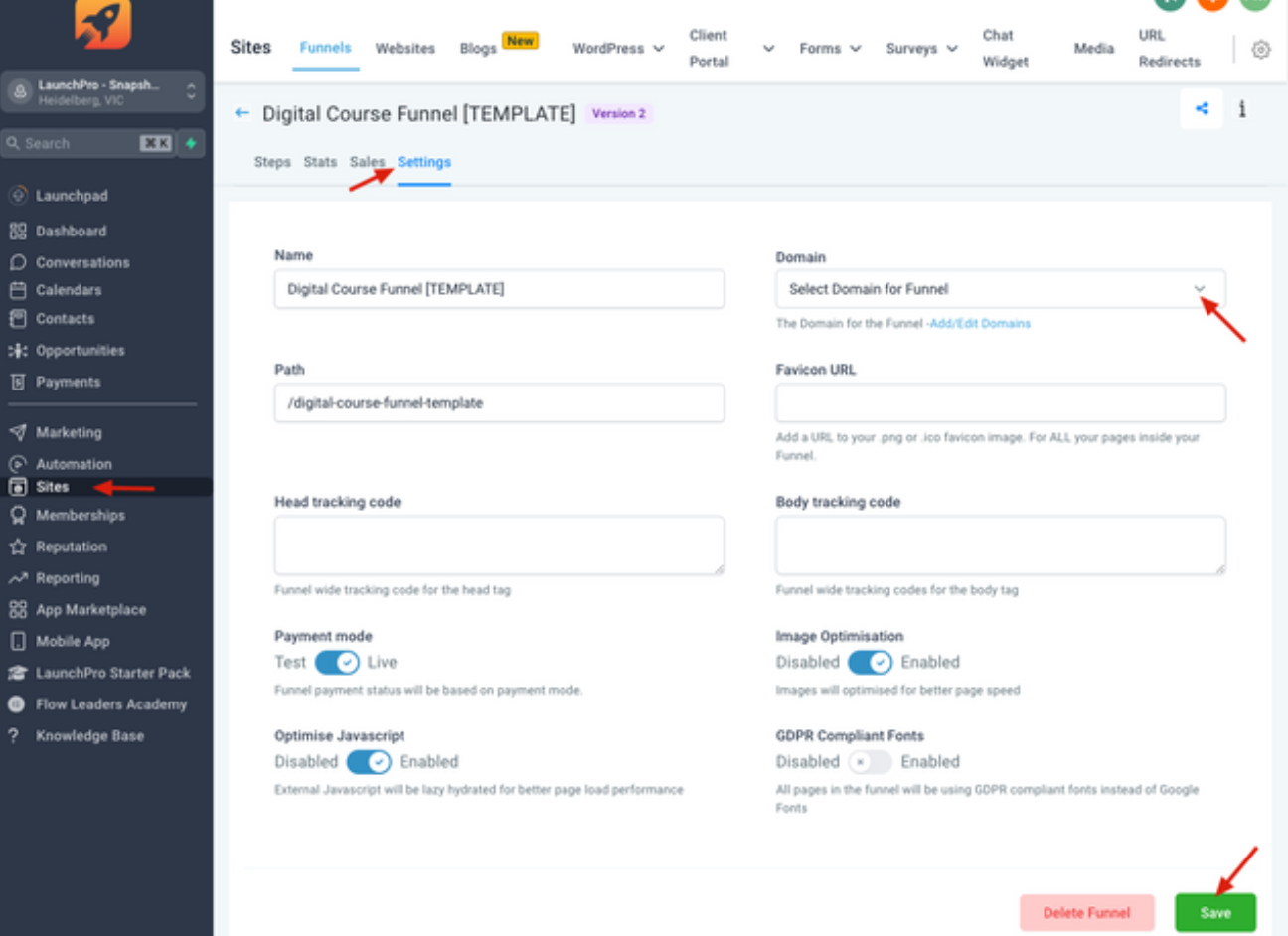
Step 6: Test your funnel
Try to access the domain you’ve just added to test if you can view the funnel.
Was this article helpful?
That’s Great!
Thank you for your feedback
Sorry! We couldn't be helpful
Thank you for your feedback
Feedback sent
We appreciate your effort and will try to fix the article