Understanding Member Roles
A well-structured community group has a hierarchy of roles, each with distinct responsibilities and capabilities. Here are the four key roles:
1. Owner:
As the highest-ranking role, an Owner holds full administrative control over the group, even the authority to delete the group if necessary.
2. Admin:
Admins manage group members effectively. They can add or remove members and assign administrative privileges, thus allowing others to assist in managing the group.
3. Moderators:
Moderators maintain the group's integrity. They monitor and moderate content within the group, ensuring it adheres to community guidelines and fosters a respectful environment.
4. Contributors:
Contributors are the group's lifeblood, driving discussions and engaging with content. They can post discussions, add comments, and show their engagement with likes.
Understanding these roles enables effective management and moderation, ensuring each member can participate appropriately.
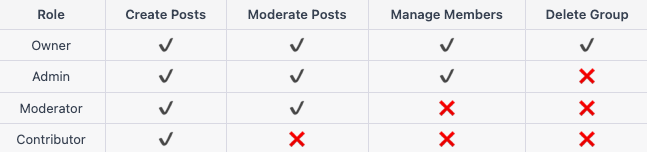
Here's a breakdown of the table:
Create Posts: This is the ability to create and publish new posts in the group.
Moderate Posts: This is the ability to moderate, edit, or delete posts made by other group members. This ability is typically reserved for 'Owners,' 'Admins,' and 'Moderators.'
Manage Members: This includes adding new members, changing members' roles, and removing members from the group. Typically, this ability is reserved for 'Owners' and 'Admins.'
Delete Group: This is the ability to delete the group entirely. This ability is typically reserved only for the 'Owner' to prevent accidental or unauthorized deletion of the group.
Modifying Member Roles and Access Control
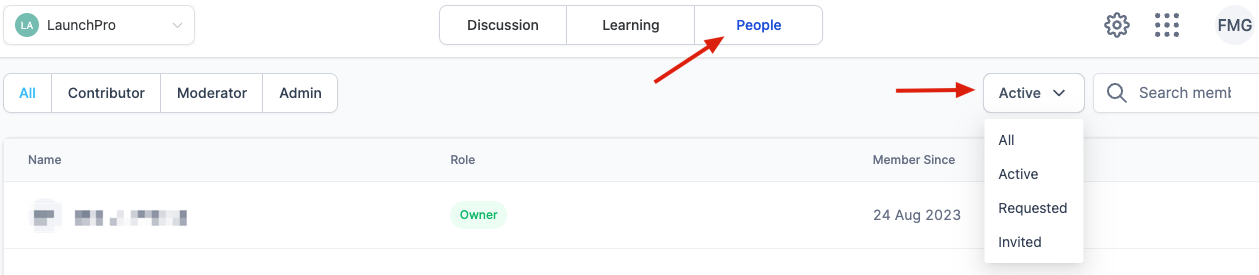
Logged in to the group and navigate to the “People” tab → you can search or apply filters to locate the specific member you wish to modify.
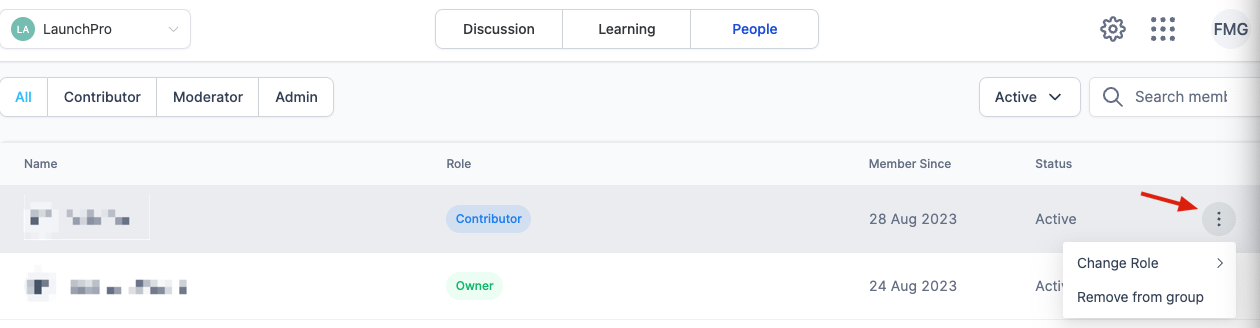
Once you have found the member, click on the three dots icon on their profile's right side.
Select the appropriate role or access level you want to assign to the member from the options presented.
Removing Members from a Group
Navigate to “People” tab → search or apply filters to locate the specific member you wish to remove → click the three dots icon on their profile's right side → click Remove from group
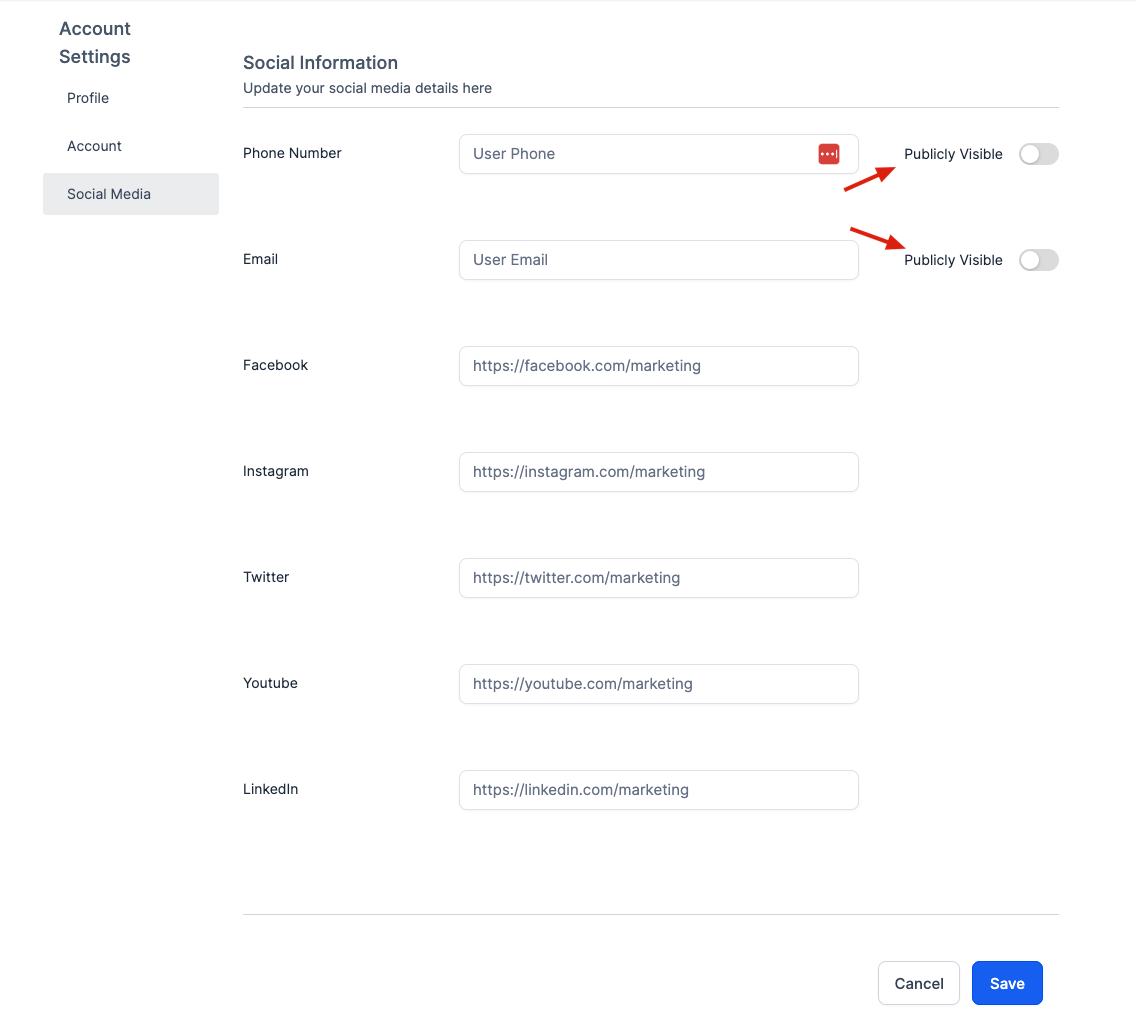
Changing Member Email/Phone Visibility
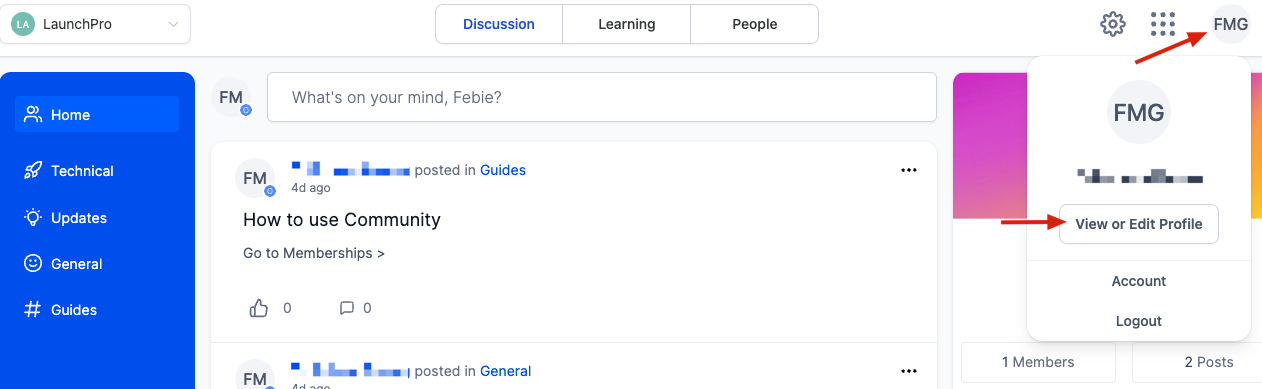
Users can click on their initials on the top right to access their View or Edit Profile area. From here, they can access the Social Media tab to choose whether or not they wish their Email/Phone to be visible.
FAQs
Q: Can I set up an automated invitation for new clients added to my CRM?
A: As of now, Communities doesn't support automated invitations. However, it is a feature we want to add in the future. You can manually invite new clients by copying and sharing the group URL.
Q: I have a large list of potential members. Is there a way to invite them all at once?
A: You can invite multiple members at once by sending out a mass email or SMS campaign with the group URL included. This makes it easy for them to access and join the community.
Q: Can members invite others to the group, or is this feature exclusive to admins and owners?
A: Typically, members can share the group URL with others, effectively inviting them. However, to maintain control over group membership, Admins and Owners can remove anyone they do not wish to allow in a group. Private Groups are in the timeline for later.
Q: I sent an invitation, but the member hasn't joined yet. Can I resend the invitation?
A: Absolutely. It's possible the invitation was missed, or they haven't had a chance to join yet. Simply resend the group URL to give them another opportunity to join.
Q: Can I personalize the invitation sent to potential members?
A: Invitations can be personalized within your CRM, email, or SMS platform when you share the group URL. However, the Communities platform currently doesn't support the personalization of invitations within the system.
Q: What happens when an invited member tries to join the group?
A: When an invited member clicks on the group URL, they are directed to the group where they can request to join. They are admitted automatically upon signing up.
Q: Can I track who has accepted the invitation and joined the group?
A: Yes, within the "People" tab in your group, you can see all the members of your group, including those who have recently joined. This allows you to keep track of membership and engagement levels.
Was this article helpful?
That’s Great!
Thank you for your feedback
Sorry! We couldn't be helpful
Thank you for your feedback
Feedback sent
We appreciate your effort and will try to fix the article