What is featured in Content Management?
Content Management in Communities encompasses several components facilitating a dynamic and engaging community environment. These include:
Group Channels: These are thematic or topic-based categories within a community group that aids in organizing discussions and facilitating relevant conversations. Admins have the exclusive privilege to create these channels.
Posts: These are the main form of content within a group. Members can create rich posts which can be associated with a specific channel. Posts can include various types of content, such as texts, images, videos, and other attachments, providing a comprehensive way to share information or spark discussions.
Home Timeline: This centralized hub displays posts from all members across all channels within the group. It provides a comprehensive overview of the group's activities, keeping members updated on the latest conversations and developments.
Embedding Videos: Posts in the community can host videos from various platforms like YouTube, Vimeo, Wistia, and Loom. This allows for more engaging and interactive content within posts.
Attachments: Posts within the community also support including various file formats such as images, GIFs, and other media. This feature further enriches the content of the posts.
Comments and Likes: These serve as key drivers for engagement within the group. Members can comment on posts, include various types of content in their comments, and express their appreciation for posts and comments through likes.
Post Deletion: Admins and moderators can delete any posts within the group that violates the community's guidelines. Additionally, members have the right to delete their posts and comments.
Usage Cases for different combinations of Content Management:
Brand Awareness Campaign: A company can use Communities to raise awareness about its new product line. The company created a new group channel specifically for this campaign, and regular posts are made featuring images, GIFs, and embedded videos showcasing the products. Invitations are sent to customers and potential clients to join the community and participate in the discussion. This strategy utilizes Group Channels, Posts, Video Embedding, and Inviting Members.
Customer Support Forum: A software company uses Communities to provide customer support. Different group channels are set up for different software modules. Customers post their queries or problems in the respective channels, and the company's support team responds promptly, including video tutorials and document attachments when necessary. The Home Timeline keeps all members updated on ongoing issues and their solutions. The company can also use this community to invite new users. This case employs Group Channels, Posts, Attachments, Home Timeline, and Inviting Members.
Education/Training Program: An online education platform can use Communities to deliver its courses. Different group channels are set up for different courses or topics. The instructors can create posts for each lesson, embed videos, attach lesson materials, and start discussions. Students can ask questions or discuss the material in the comments. The Home Timeline helps students to stay updated on new posts and ongoing discussions across different channels. This scenario leverages Group Channels, Posts, Embedding Videos, Attachments, Comments and Likes, and Home Timeline.
Internal Communication for Businesses: A company can use Communities to facilitate internal communication. Various group channels are created for different departments or project teams. Team members create posts to update their progress, ask questions, share relevant materials, etc. The Home Timeline ensures everyone stays updated on what's happening in other teams or departments. The company also can invite new employees to the relevant groups. This situation combines Group Channels, Posts, Attachments, Comments and Likes, Home Timeline, and Inviting Members.
Community Engagement for NGOs: A non-profit organization can use Communities to engage with its community of supporters and volunteers. Various channels can be created based on different programs or causes. The organization can post updates, share stories, ask for feedback, or start discussions related to their work. Supporters and volunteers can respond with comments or likes, share their thoughts, and spread the word. This application utilizes Group Channels, Posts, Comments and Likes, and Home Timeline.
Create Group Channels
Multiple channels are available within each group to categorize discussions and facilitate organized conversations. Only admins have the privilege to create these channels.
To create a channel, locate and click the "Add Channel" button in the group interface's left bar.
A window will appear, prompting you to provide specific details for the channel creation.
Once you have entered the channel name, description, and selected an icon, Click Create Channel.
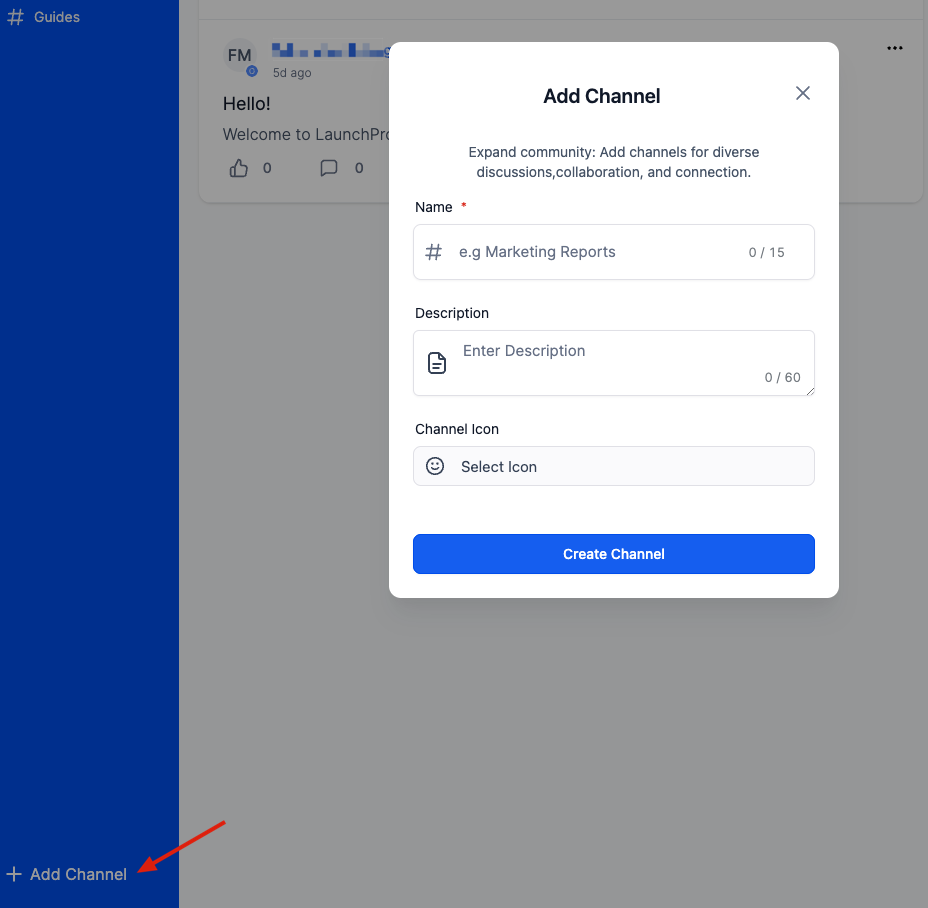
Channel Name - a brief, succinct name for your channel that encapsulates its purpose. You have a limit of 15 characters for this field, meaning your channel name should be short.
Channel Description - a brief summary of your channel and the discussions it intends to facilitate. It should provide a clear context for potential members. Remember that you have a maximum of 60 characters for this description, so it should be concise yet informative.
Channel Icon - Select a distinctive icon that visually symbolizes your channel. This icon will be displayed next to your channel name, offering members a visual cue that helps them identify your channel quickly.
Create a Post
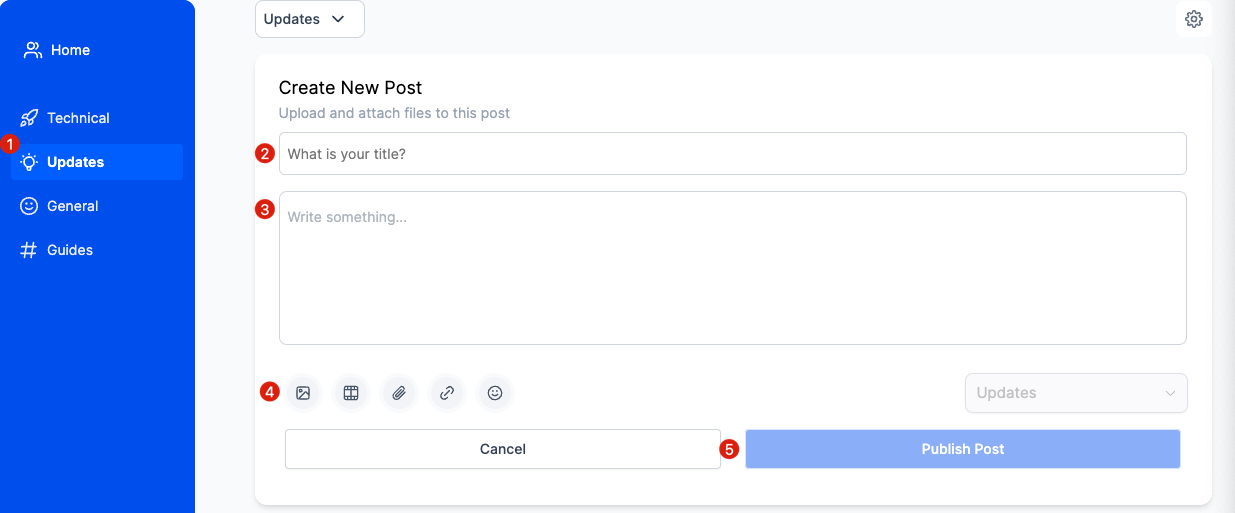
Home Timeline
To get a comprehensive overview of what is happening inside your group, navigate to the home timeline. It is the designated space where you can view posts from all members across all channels in one convenient location. Regularly checking the home timeline lets you stay informed and engaged with the ongoing conversations and updates within your group.
Deleting a Post
Admins and moderators have the authority to delete any posts within the group if they find them to be in violation of the terms and conditions. Additionally, members can delete their posts and comments.
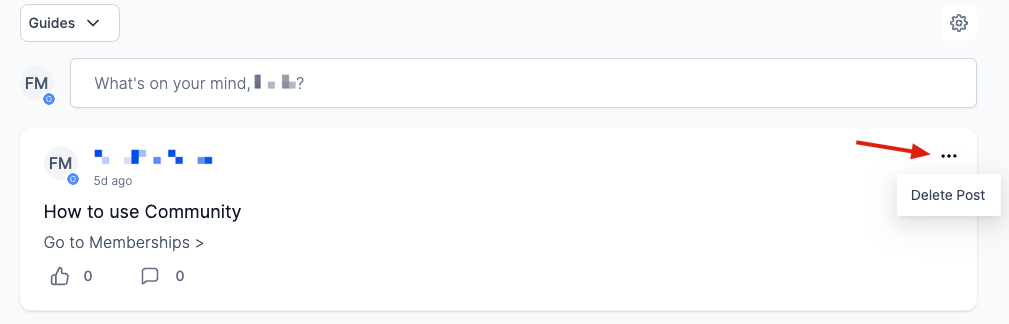
Locate the post you want to delete within the group.
On the right side of the post, you will find three dots icon.
Click on the three dots icon to reveal a dropdown menu of options.
From the menu, select the "Delete Post" option.
By selecting this option, the post will be permanently removed from the group
FAQs
Q: How many images can I attach to a single post?
A: You can attach as many images as you like to a single post. However, we recommend limiting the number of images per post to ensure optimal loading times and readability.
Q: Can I change the title of my post after it has been published?
A: Yes, you can edit your post title after publication. Simply go to the post, click on the three dots icon at the top, and select 'Edit Post'. You can then modify your title as needed.
Q: What is the maximum size for video files that I can upload?
A: File Size restrictions will be defined later for this feature. For optimal performance, we recommend keeping your video files below 100MB. (This is not the official file size limit.)
Q: What happens when I add a hyperlink to my post?
A: When you add a hyperlink to your post, users can click on the linked text to be taken directly to the linked URL. This is a great way to provide additional resources or references without cluttering your post.
Q: Can I use emojis in my post title?
A: Yes, you can use emojis in your post title. However, keep in mind that the use of emojis should enhance the readability and understanding of your title, not detract from it. Always consider your audience and your post's context when choosing emojis.
Was this article helpful?
That’s Great!
Thank you for your feedback
Sorry! We couldn't be helpful
Thank you for your feedback
Feedback sent
We appreciate your effort and will try to fix the article